How it works

Roof visualizer from a photo: does it work with my house?

Most people asking this have tried a manufacturer visualizer, been told to trace the outline of their roof with a mouse, and given up. An AI roof visualizer skips that step. You upload one photo and the roof is found for you. Here is what works, what does not, and how to take the photo.

Before
After
Before
After

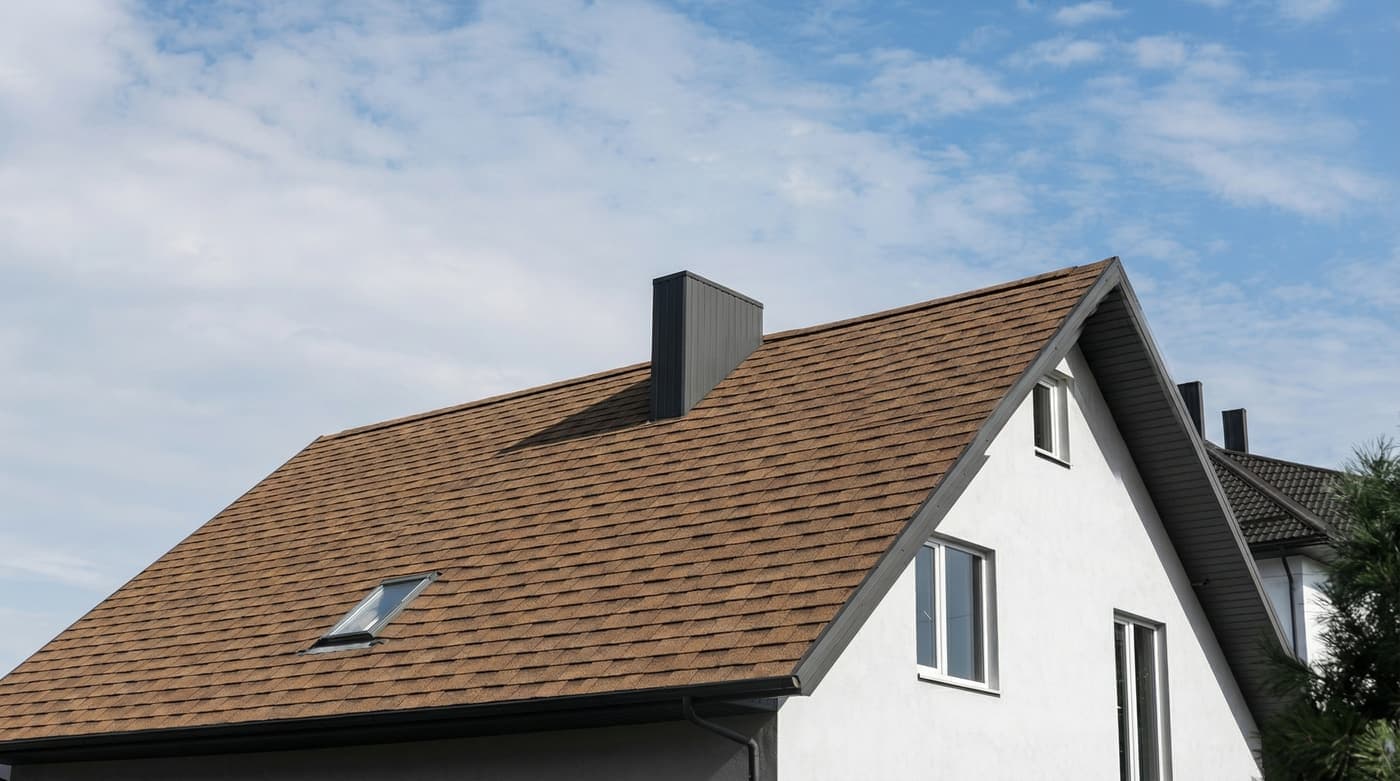
Asphalt shingle to standing seam. Tan siding, charcoal. Drag the handle.

What kind of photo

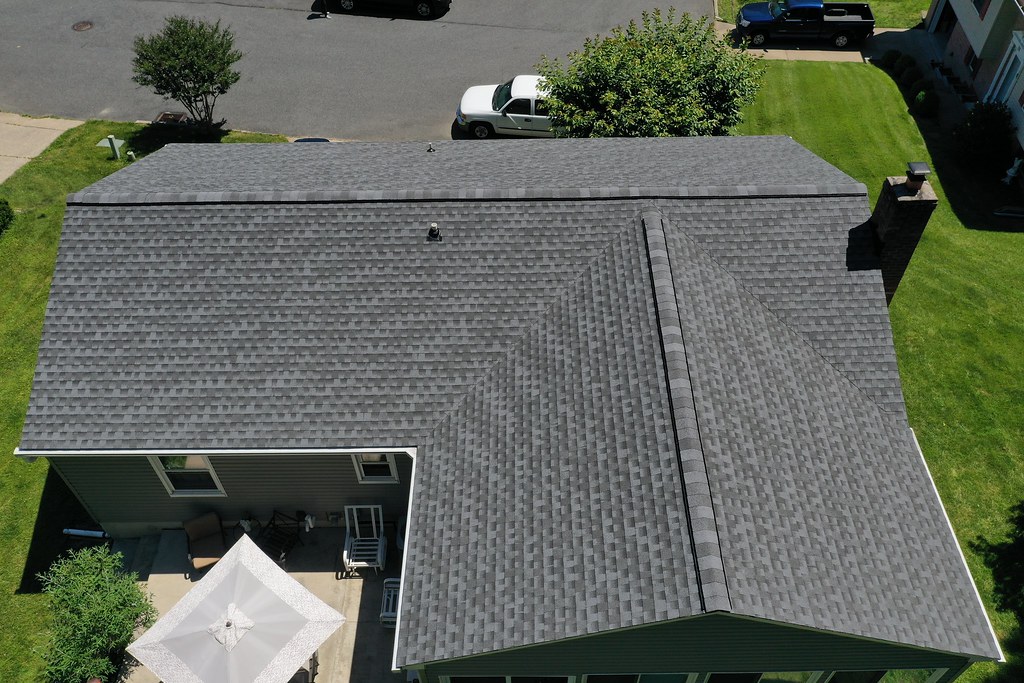
A normal phone photo from the street or the driveway. Daylight, the whole roof in the frame, the sun behind you rather than behind the house. Portrait or landscape both work. Drone photos work and are good for big roofs. Screenshots from a listing or from street view also work, though the quality of the render follows the quality of the photo.

Which houses it handles

Gables, hips, dormers, valleys, multiple roof sections, flat roofs, attached garages and porches. Two-storey houses, ranches, cabins, townhouses and commercial buildings. The render finds every roof surface in the photo and changes them all to the new material.

Trees, cars and things in the way

A tree in front of part of the roof is fine. The render changes the roof it can see and leaves the tree. The same goes for power lines, cars and the neighbour's fence. If more than half the roof is hidden, take a photo from a different spot.

One photo, many roofs

The photo is uploaded once. Every render after that uses it, so trying a second colour or a different material is one tap. Most people try three or four before they settle.

What happens to the photo

It is stored privately in your account so you can come back to your renders. It is not public and it is not used for anything else. You can delete any render, and the photo with it, from your history.
Real before and after

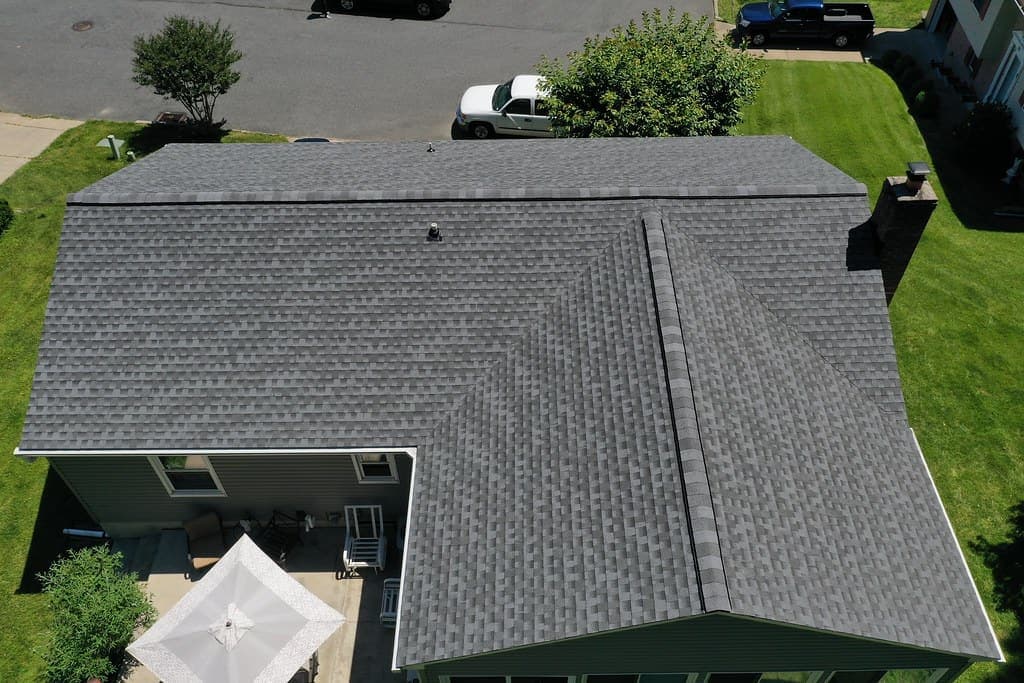
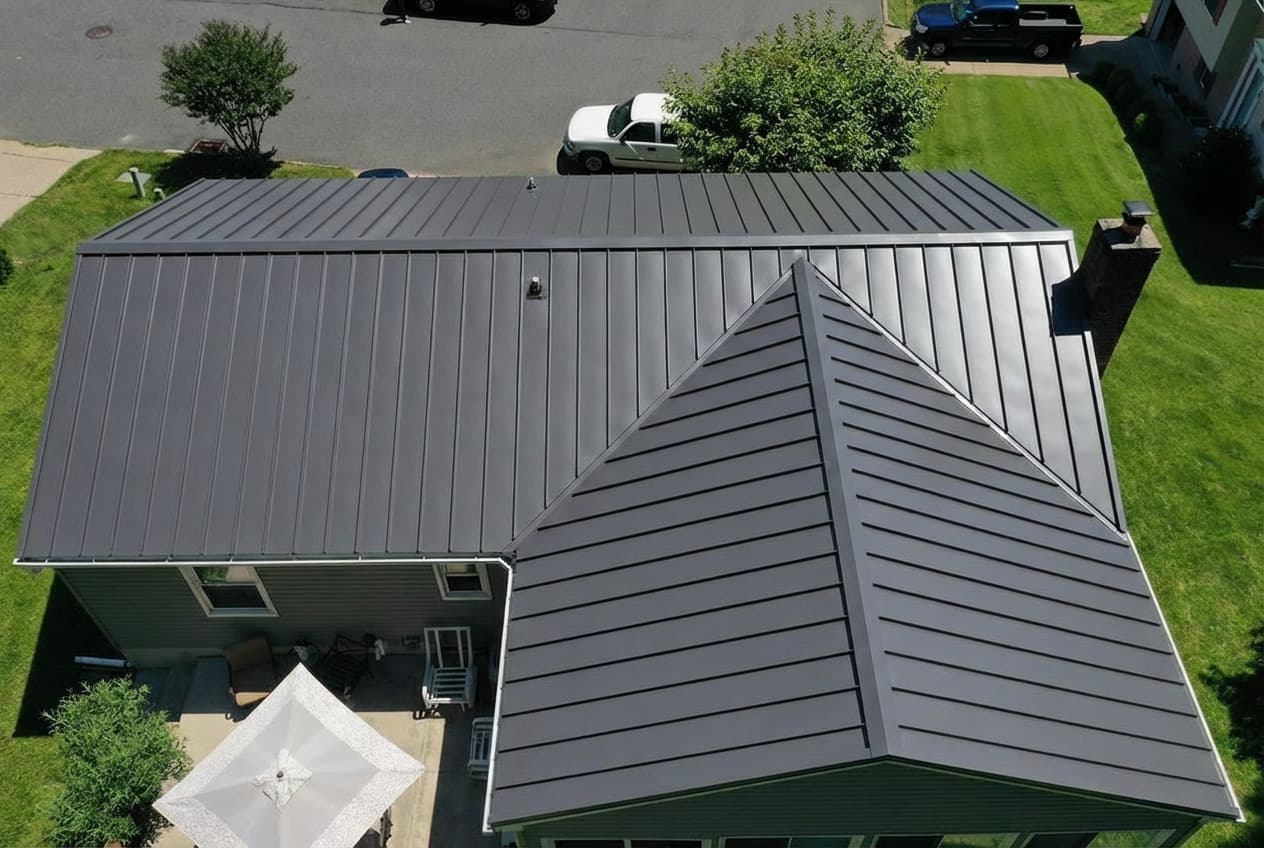
Each pair is one photo, rendered. The house, the light and the surroundings are untouched. Only the roof changes.

Before: Asphalt shingle to standing seamBefore
After: Asphalt shingle to standing seamAfter

Asphalt shingle to standing seam

Tan siding, charcoal

Before: Grey shingle to brown shakeBefore
After: Grey shingle to brown shakeAfter

Grey shingle to brown shake

White cottage

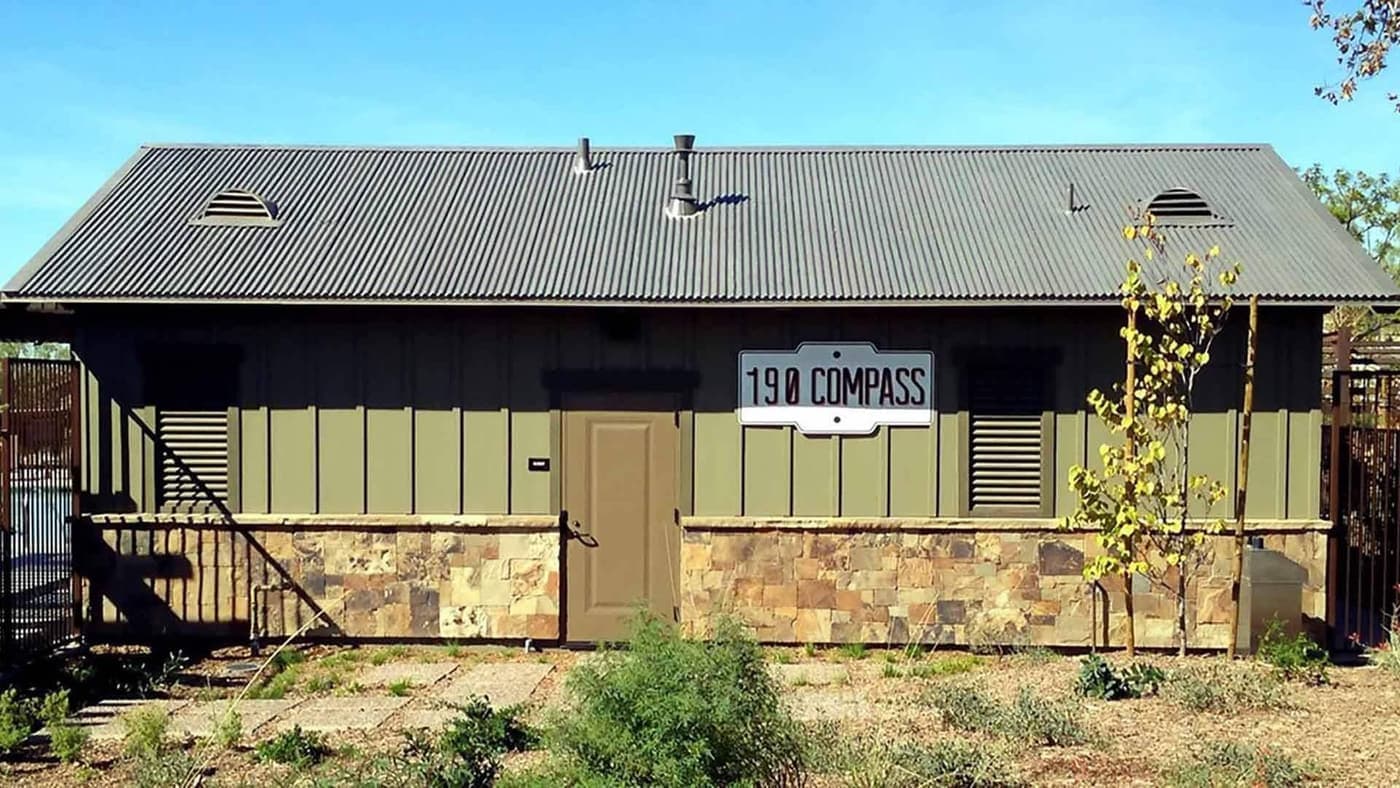
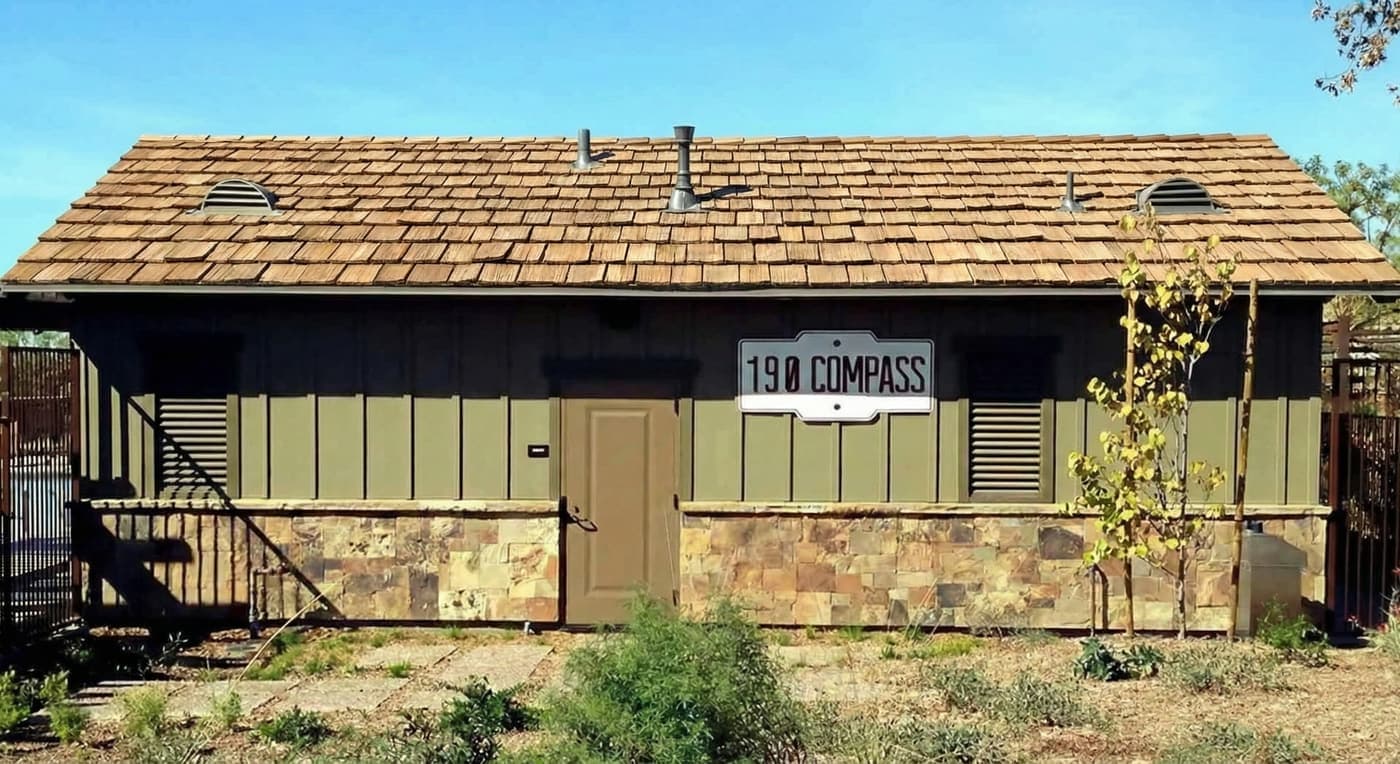
Before: Grey standing seam to cedar shakeBefore
After: Grey standing seam to cedar shakeAfter

Grey standing seam to cedar shake

Stone and timber

Questions

Do I have to trace my roof?
No. RoofRender finds the roof in the photo. There is no outlining, masking or manual setup.
Can I use a photo from Google Street View or a listing?
Yes. A screenshot works. The render is only as sharp as the photo, so a photo you take yourself is better.
Does it work on a house with dormers or a complicated roof?
Yes. Dormers, hips, valleys and multiple sections are handled. That is the main advantage over trace-and-overlay tools.
How long does a render take?
About 30 seconds.

Try it with your photo

One photo, any roof, 30 seconds. Three free renders, no card.

Upload a photo

Related